I’ve been tracking the digital downloading landscape for a long time, and I can say with absolute certainty: 2026 is the year of AI video. The tech has jumped from interesting experiments to professional-grade tools in a heartbeat. But as a content creator, filmmaker, or just someone playing around with these incredible tools, I’ve also noticed a ticking time bomb that no one is talking about enough.
We are all creating stunning, one-of-a-kind AI videos, and we are trusting them to live in “temporary cloud buffers” on web previewers.
Here is the cold, hard truth: If you don’t back them up, you are going to lose them.
Native platform links are designed for quick sharing, not long-term storage. Links expire. Cloud allocations fill up. Models change, and your previous generations become inaccessible. Think of this article as your wake-up call and a definitive blueprint to secure your digital legacy.
The Urgent Case for Your AI Video Archive
I’ve had creators message me in a panic, asking how to retrieve a stunning 60-second clip they made in Luma that just… vanished from their recent generations feed. This is not a “someday” problem; this is a “right now” problem. Here is why I believe every single creator needs an archiving plan:
- Expiring View Links: Most “view only” preview links (the kind you generate to show a friend) have an expiration date. Your generation might be there today and gone next week.
- Cloud Storage Limits: Even on paid tiers, you have limited space. To keep creating, you must delete old generations. Archiving lets you clear your cloud and keep your creations.
- Platform & Model Expiry: I’ve seen this happen with text and image models, and it’s happening with video: a tool might phase out older models. If you didn’t download your “perfect” Gen-1 render locally, it’s lost.
- Bypassing Platform Limits: Native download buttons are sometimes locked to 720p or include massive, unremovable watermarks. Local scraping is often the only way to save the full, clean 4K files.
How to Save Your Work: The “Scrape-and-Save” Method
The single most effective way to archive these videos is using a universal trick that I rely on. Instead of looking for a “Download” button that might not exist (or might add a watermark), I just take the video stream and save it directly from the browser.
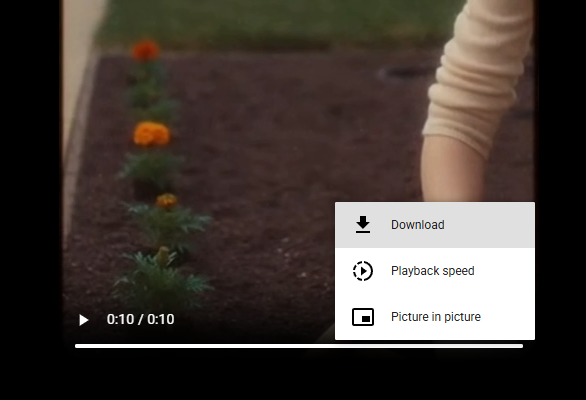
I will explain this technique for each platform below. In different words, I am telling you to:
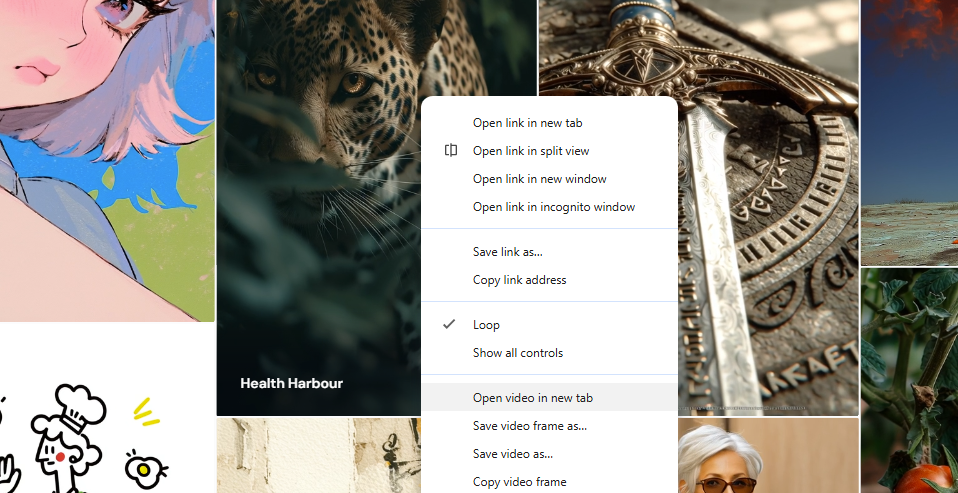
- Right-click on the video player.
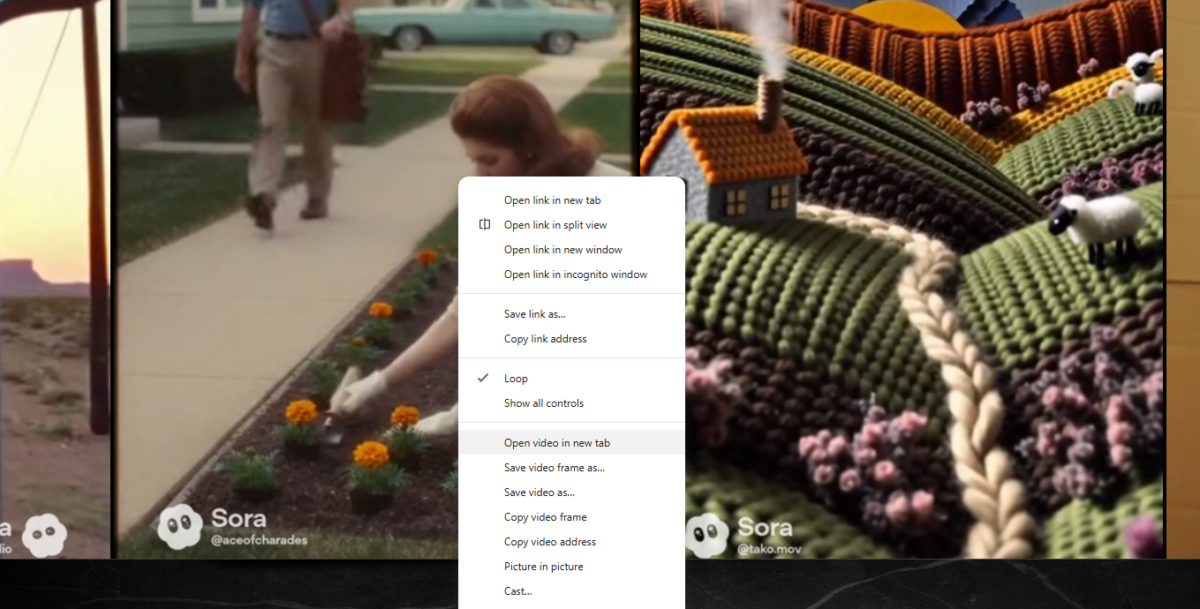
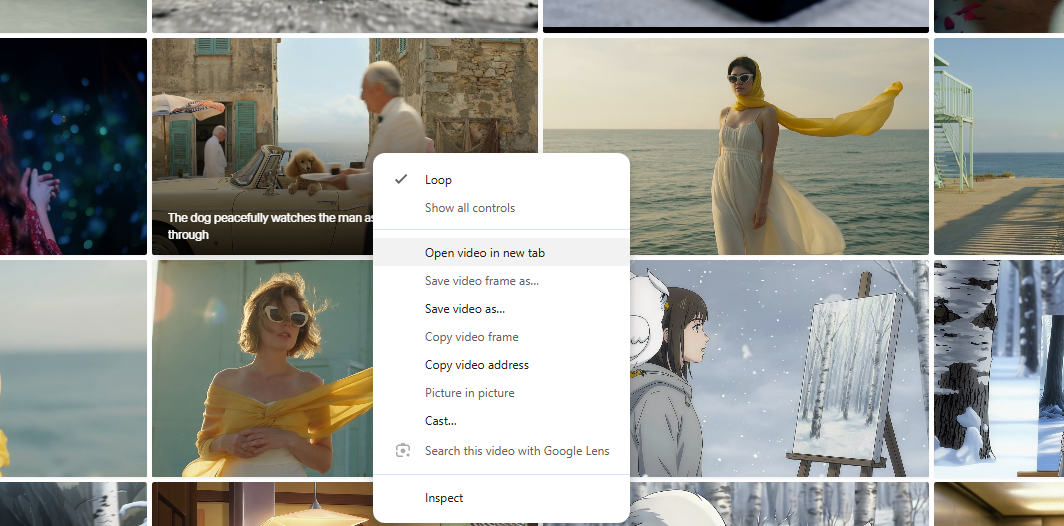
- Select “Open video in new tab.”
- On the new tab, right-click the clean video stream.
- Choose “Save Video As…” and name your file.
It works almost every time. Let’s look at how I apply this to the biggest platforms in the industry right now.
Part 1: The Cinematic & Motion “Big AI Video”
These tools are creating our dreams, and they are also creating a massive challenge for long-term storage.
1. Sora (by OpenAI)
The big one. OpenAI’s Sora is arguably the most powerful cinematic engine on the market, known for physics consistency and complex prompt adherence. While previewing your latest generation, I found that you can easily isolate the raw video stream. To preserve these masterpieces, you can simply right-click on the Sora previewer and choose to launch the video in its own window. Once it opens a standalone stream, you can immediately save the file directly from that native player to your hard drive.
2. Runway
A veteran of the AI space, Runway’s Gen-3 Alpha is a motion powerhouse. To secure my raw clips before my cloud allocation gets tight, I use the “scrape” method. When your render is ready, instead of hitting the official download (which can sometimes be limited), I like to open the final video asset in its own dedicated browser tab. This gives you access to the unadulterated output, allowing you to save the clean video stream in one click.
3. Luma Dream Machine
Luma is incredible for stylized motion and is very popular for generating 5-second loops that perfectly maintain visual fidelity. For quick archiving, I’ve found that the direct stream is always accessible. To guarantee I keep every perfect loop, I recommend you navigate directly to the raw video source URL for your Luma creation. Once you have that dedicated tab, you are free to save the video directly from the browser to your local media server.
4. Google Veo
Google’s powerhouse model, integrated into Flow and Gemini, produces hyper-realistic video with synced audio. Given its integration into Google’s massive ecosystem, saving these clips locally is key before they get buried in a feed. To store your raw Google Veo output, I’ve had success by using the browser to access a pure, standalone view of the video element. Once you are viewing the video on its own page, you can save the underlying MP4 file to your desktop in seconds.
5. Midjourney (V1 Video)
Midjourney is famous for images, but its first video model is already a high-resolution contender. Because it operates largely through Discord or its own web grid, archiving is a major pain point. To move my videos from the grid to my local library, I always advise users to launch the individual video result in a clean browser window. In that new tab, you can easily access the media stream and save the full resolution generation directly to your photos library.
Part 2: The Motion (Picture) Specialists [The Rest]
These are the nimble tools that creators are iterating on constantly, making them prime targets for bulk archiving.
6. Kling AI
A huge name for high-action scenes and character consistency, Kling AI is a favorite for animation prototyping. Since I generate dozens of Kling clips an hour, I need a reliable preservation method. I’ve found that you can easily open the source URL of any Kling generation directly from your recent work feed. Once you are looking at the clean, standalone video player, you have the option to save the direct video output file immediately.
7. Pika
Pika 2.5 is the platform of choice for granular camera controls and lip-sync. For archiving these technical assets, I find the “Open in new tab” method to be the most dependable. When your creation is complete, I tell users to isolate the underlying video stream in a new browser tab. From that vantage point, you have direct access to save the raw, unadulterated clip without a native platform watermark.
8. Hailuo / Minimax
Famous for extremely smooth animations and rapid generation speeds, this tool means you are going to generate a lot of content that needs local saving. To keep up with your high-volume production, you can navigate directly to the pure media file link of your generation. Once that video is open in its own clean tab, you are clear to immediately save the file directly to your system.

9. Wan
A favorite in the open-source and developer space, Wan’s outputs are versatile. I suggest you obtain a clean view of the individual video file in a dedicated tab for permanent archiving. Once you have that direct access, you are free to save the source video data directly to your local workstation for your editing pipeline.
10. Seedance
If you are using Seedance for rapid multi-shot prototyping, you are going to have a lot of iterations you want to save. My method is to isolate the specific video generation link and open it in its own window. This provides a direct path, enabling you to save the underlying video stream in a single motion.
11. Higgsfield AI
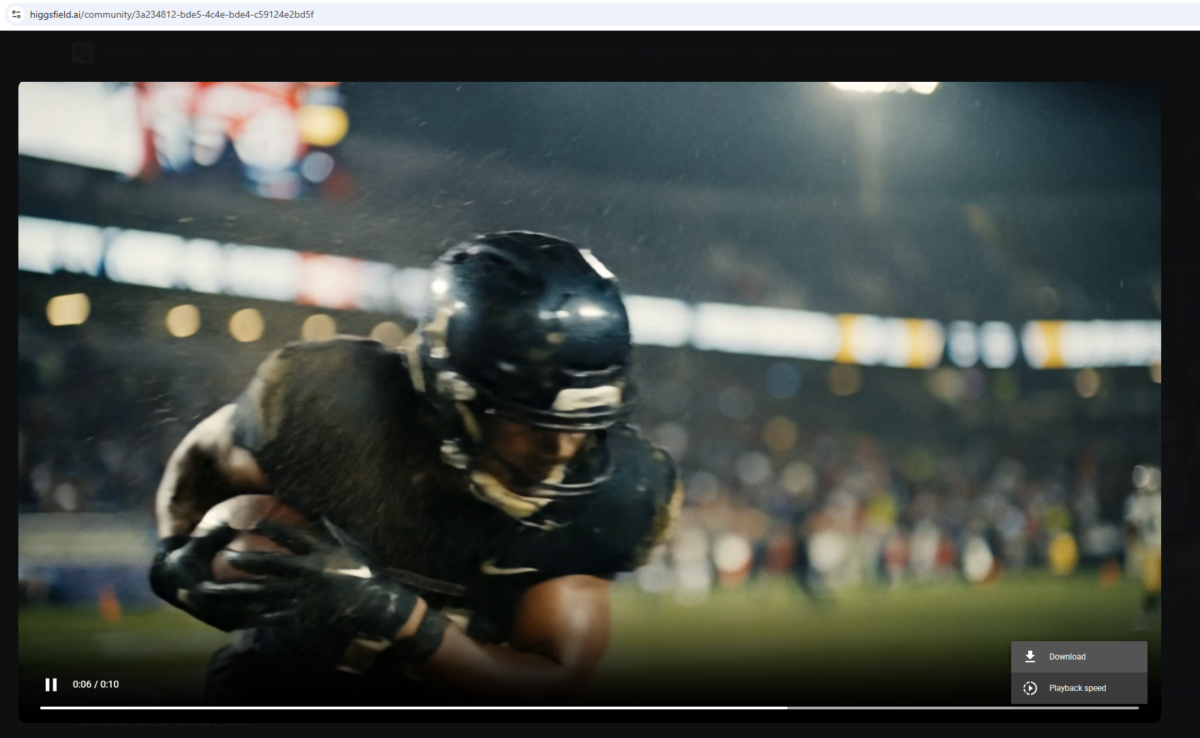
A rising star for social media marketing, Higgsfield is designed for speed. To ensure you don’t lose critical clips before posting, I’ve had success by launching the raw video result in its own new window. This opens up the clean stream, making it simple to save the media file directly to your social media assets folder.
How to Do It – Organizing and Securing Your AI Legacy
I don’t just save files; I create a robust archive. I believe that a proper digital storage plan for AI video is just as important as the creation process itself. Here is my personal blueprint for building an AI vault that you’ll be able to navigate years from now:
1. The Spreadsheet is Your Savior
For every file I download locally, I log it in a central Google Sheet or Excel file. I include:
- The Prompt (this is vital for recreation later).
- The Platform/Model used (e.g., Luma Dream Machine v1.2, Pika 2.5).
- The Native Link (in case I need to try a platform redraw).
- My Local Filename.
2. Local Folders Matter
I organize my local storage by project or theme (e.g., Archive/AI/Cinematic_Short_Project/ or Archive/AI/Portraits/Loops/). This is much better than a single dump folder.
3. Automate When Possible
As my fellow tech bloggers know, I’m always looking for plugins to speed up the workflow. I’m currently testing various browser extension tools that allow me to right-click and “save and rename” in one click, mapping the original page title to the filename.
The Learning Curve: Archive Today – Thank Yourself Tomorrow
The current landscape of AI video is incredibly exciting, but the temporary nature of web previewers is a critical vulnerability. As a long-time expert in video downloader tools, I can tell you that the single most common frustration is users looking for a way to recover a file that they should have archived days or weeks ago.
I urge you to treat your AI generations with the same respect you treat a master file from Premiere or a raw image from your DSLR. The method I’ve described here—right-clicking to isolate and save the video stream—is the single most reliable, universal way to protect your digital legacy in 2026.
Don’t let your creativity be temporary. Archive your AI video today.
